Is this conversation helpful so far?
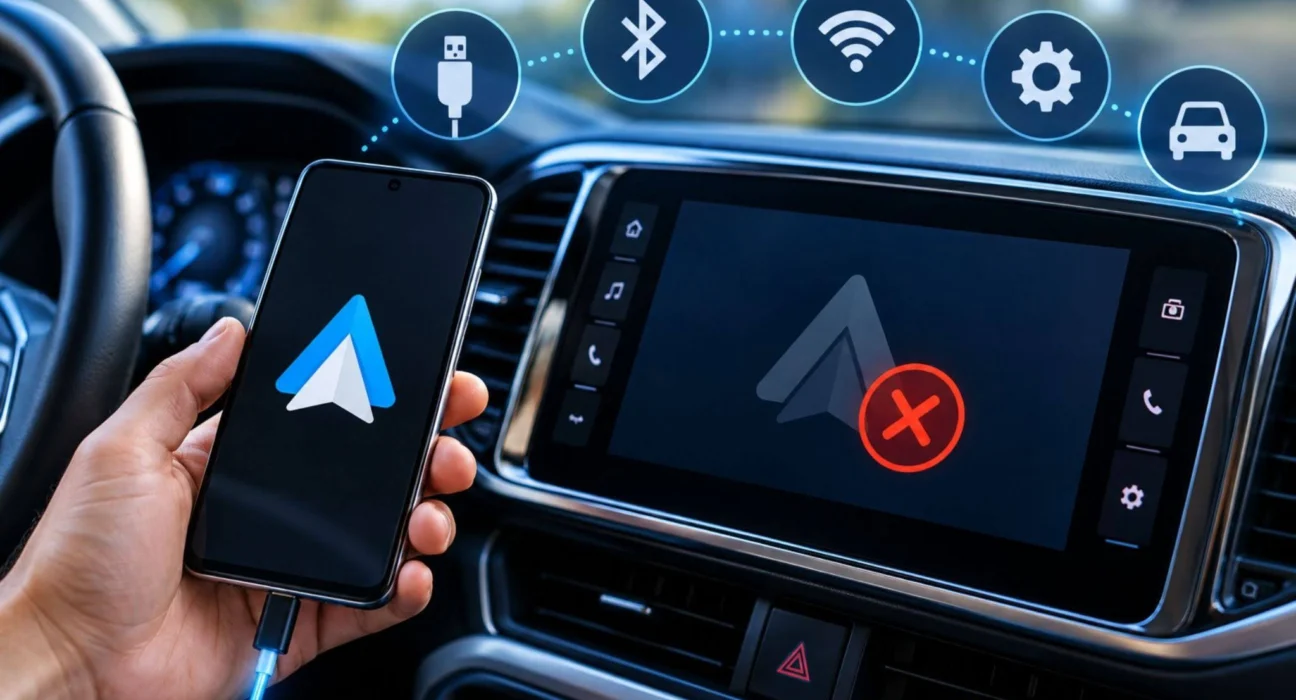
You connect your phone to your car, expecting your navigation, calls, and music to appear on the dashboard, but nothing happens. Sometimes Android Auto refuses to launch, while in other cases the screen remains black, the phone disconnects repeatedly, or Google Maps disappears during a journey.
These problems can have several causes, including an incompatible USB cable, incorrect connection settings, outdated software, wireless interference, or an issue with the vehicle’s infotainment system.
The good news is that many Android Auto connection problems can be resolved without replacing your phone or visiting a repair shop. This guide explains how to diagnose the problem, restore wired or wireless connectivity, fix navigation errors, and determine when professional assistance may be necessary.
Table of Contents
ToggleWhy Is Android Auto Not Showing on Your Car Screen?
Android Auto may fail to appear because the phone and vehicle have not established a compatible connection, the system is waiting for permission, or the car’s infotainment software is not responding correctly.
Start with these basic checks before changing advanced settings:
- Park your vehicle safely before troubleshooting.
- Confirm that your car supports Android Auto and that the feature is enabled in its infotainment settings.
- Unlock your phone and check for any connection or permission prompts.
- Restart the phone and, if appropriate, restart the vehicle’s infotainment system.
- Disconnect unnecessary USB accessories and try connecting again.
If the phone charges when connected but Android Auto does not launch, remember that charging alone does not confirm that the cable supports data transfer or that the vehicle supports the required connection method.
1. Fix a Phone Not Connecting to the Car Infotainment System
When your smartphone refuses to connect to the dashboard, first determine whether the issue affects wired connectivity, wireless connectivity, or both.
Check phone and vehicle compatibility
Not every vehicle supports Android Auto, and some cars offer only a wired connection while others support wireless operation. Compatibility can also vary by model year, trim level, head unit, and region.
Check the vehicle manufacturer’s documentation and Google’s official Android Auto compatibility information. Confirm that your phone meets the software requirements and that the vehicle supports the connection method you are attempting to use. Read another article on How to Protect Personal Data Online?
Restart both systems
Temporary software errors can prevent the phone and car from communicating correctly. Restart your phone and power-cycle the infotainment system according to the vehicle manufacturer’s instructions.
After restarting, unlock the phone, reconnect it, and accept any prompts requesting permission to use Android Auto.
Remove and reconnect the vehicle
If the phone previously worked but no longer connects, remove the saved vehicle connection from the relevant Android Auto settings, where available. You may also need to remove the phone from the car’s Bluetooth device list.
Pair the devices again using the vehicle manufacturer’s recommended setup process. This can resolve problems caused by an incomplete or outdated pairing.
2. Resolve USB Connection Problems With Your Car Screen
A wired connection is often straightforward, but the USB cable and the vehicle’s port must support the necessary data connection.
Use a suitable USB cable
Some cables are designed primarily for charging and may not transfer data reliably. A damaged cable can also cause intermittent disconnections even when the phone continues charging.
Try a short, good-quality cable that supports data transfer. If possible, test it with another compatible device or replace it with a known-working cable.
Try the correct USB port
Some vehicles have several USB ports, but not every port supports smartphone projection. One may be intended only for charging or media playback.
Consult the vehicle manual to identify the port designated for Android Auto or smartphone integration. Avoid USB hubs and extension adapters during initial troubleshooting because they introduce additional points of failure.
Inspect the USB-C port
Dust, lint, moisture, or physical damage can interfere with the connection. Check the phone’s port visually and clean it only using a safe method recommended by the manufacturer. Do not insert metal objects or apply liquid.
If several known-working cables fail, the issue could involve the phone’s port, the vehicle’s USB socket, or the infotainment system itself.
3. Fix Wireless Car Connectivity That Keeps Disconnecting
Wireless Android Auto depends on compatible wireless connectivity, typically involving Bluetooth for initial pairing and Wi-Fi for the main wireless connection. Problems with pairing, interference, or connection settings can interrupt the experience.
Reset the wireless connection
Turn Bluetooth and Wi-Fi off and back on, then restart the phone if necessary. Remove the existing phone pairing from the car and the saved vehicle connection from the phone before pairing again.
Follow the vehicle manufacturer’s instructions because the wireless setup process differs between cars.
Reduce possible interference
Wireless performance can be affected by the surrounding environment and other wireless devices. For testing, disconnect unnecessary accessories and keep the phone in a stable location near the vehicle’s intended connection area.
If wireless connectivity repeatedly fails but a wired connection works reliably, the problem may be related to wireless pairing, interference, or compatibility rather than the Android Auto app itself. Read another article on Tech Giants Envision a Future Beyond Smartphones
Check battery restrictions
Some Android devices restrict background activity to conserve power. Review the battery settings for Android Auto and related applications, and avoid aggressive restrictions if they interfere with normal operation.
The precise settings depend on the phone manufacturer and Android version.
4. Fix a Black Screen on the Car Infotainment Display
A black screen can indicate that the phone has connected but the projection interface has failed to load. It can also point to an issue with the vehicle’s display or infotainment software.
First, determine whether the entire display is black or only the Android Auto interface is missing. If the car’s menus and radio still work, the issue may be limited to the smartphone connection.
Try the following steps:
- Disconnect the phone and reconnect it after restarting the phone.
- Check whether the infotainment system has a pending software update.
- Test another compatible USB cable or the supported wireless connection.
- Confirm that Android Auto is enabled in the vehicle’s settings.
- Remove the existing pairing and set up the connection again.
If the entire infotainment display remains black, including the car’s own menus, consult the vehicle manual or an authorized service center. That symptom may indicate a vehicle-side problem rather than a phone issue.
5. Fix Phone Projection Not Launching Automatically
Sometimes Android Auto works only after several manual steps instead of starting when you connect your phone.
Open the Android Auto settings on your phone and review the available startup and connection preferences. Depending on the Android version, you may be able to adjust when the interface starts or whether it can launch while the phone is locked.
Also check the car’s settings for smartphone integration. Some vehicles require you to select Android Auto from a menu or approve a new device before projection begins.
If automatic launch stopped working after an update, restart both systems and check whether permissions or connection preferences changed. Do not assume that every vehicle supports automatic launch in every situation.
6. Fix Google Maps Not Displaying on Your Car Screen
If Android Auto connects successfully but Google Maps does not appear, the issue may involve app permissions, outdated software, or the navigation app itself.
Start by checking whether Google Maps works normally on your phone. If it does, return to the Android Auto interface and look for Maps in the available application list.
Update Google Maps through Google Play, restart the phone, and check that the application has the location permissions it needs. Also confirm that Google Maps is not disabled and that the phone has a working internet connection when online navigation is required.
What if Google Maps keeps freezing?
If Google Maps freezes on the vehicle display, close the application, restart it, and check for updates. Clearing its cache through Android’s application settings may help if temporary application data is causing trouble.
If the problem began immediately after a software update, check for subsequent updates to Google Maps, Android Auto, or your phone’s operating system. Avoid installing unofficial versions of either application.
7. Fix GPS Errors and Navigation Voice Problems
Navigation problems can be especially frustrating when directions become inaccurate or voice instructions disappear during a journey.
GPS location is inaccurate
If the navigation system shows the wrong location, check that your phone’s location services are enabled and that Google Maps has permission to access location information.
Tall buildings, tunnels, covered parking areas, and other obstructions can interfere with GPS reception. Move to an open area when safe and allow the phone time to establish a more accurate position.
If the issue continues in several navigation applications, restart the phone and check for software updates. Persistent location errors may require further device diagnostics.
Navigation voice instructions are not working
If the map appears but spoken directions are missing, check the navigation app’s audio settings and the car’s media volume. Navigation guidance may use a separate volume level from music or phone calls.
To increase navigation voice volume in your car, start a route and adjust the volume while a spoken instruction is playing, if your vehicle supports separate guidance-volume control.
Also check whether voice guidance is muted within Google Maps and whether the car is routing audio to the correct speakers.
Google Maps repeatedly changes routes
Automatic rerouting can occur when traffic conditions change, the phone loses location accuracy, or the driver misses a turn. Check that location permissions are enabled and that the map shows your correct position.
If rerouting continues unnecessarily, restart navigation and verify that the destination and route preferences are correct. Avoid changing settings while driving; make adjustments when parked.
8. Use Offline Maps and Better Navigation Settings
For long journeys, downloading maps in advance can reduce dependence on mobile data and help you navigate when coverage is weak.
Open Google Maps while connected to the internet, select your profile menu, and look for the offline maps option. Download the area you expect to travel through and ensure the selected map covers the relevant roads.
Offline maps have limitations. Live traffic information, some alternate routes, and other online features may not be available without a data connection. Downloaded maps also need occasional updates.
For the best navigation settings on long road trips, verify the destination before departure, set your preferred route options, keep location services enabled, and place the phone where it can maintain a reliable connection without obstructing your view.
9. Fix Connection Problems After a Software Update
If Android Auto stops working after an Android or phone software update, the update may have changed permissions, introduced a compatibility issue, or exposed a problem with the existing pairing.
Check for updates to Android Auto, Google Maps, and the phone’s operating system. Restart the phone and reconnect the vehicle.
If the problem continues, clear the Android Auto cache through the phone’s application settings, where available. You can also remove and recreate the vehicle pairing.
Avoid clearing application data or resetting all network settings as an early step, since these actions can remove saved preferences or connections. If several users experience the same issue with a particular vehicle’s infotainment system, check the manufacturer’s support information for firmware updates or known compatibility issues.
10. When Should You Seek Professional Help?
If Android Auto still does not work after testing a known-good cable, confirming compatibility, restarting both systems, and recreating the pairing, further troubleshooting may be necessary.
Contact the phone manufacturer or vehicle dealer if:
- The USB port does not transfer data with any compatible device.
- The infotainment display repeatedly freezes or goes black.
- Multiple compatible phones fail to connect to the same vehicle.
- The phone cannot establish a stable connection despite working correctly elsewhere.
- The issue began after a vehicle firmware update and persists.
These checks help determine whether the problem is with the phone, cable, vehicle port, or infotainment software. A factory reset should generally be a last resort after backing up important data.
FAQs
1. Why is Android Auto not showing on my car screen?
Common causes include an incompatible vehicle, a faulty USB cable, incomplete wireless pairing, disabled settings, or software issues. Confirm compatibility, restart both systems, and test a reliable connection.
2. Why does Android Auto keep disconnecting?
Intermittent disconnections can result from damaged cables, unstable wireless connections, software errors, or vehicle compatibility problems. Test a different data-capable cable or recreate the wireless pairing.
3. How do I fix Google Maps not appearing in Android Auto?
Update Google Maps, check location permissions, restart your phone, and confirm that Maps is enabled and available in the Android Auto interface.
4. Can Android Auto work without mobile data?
Some functions can work without mobile data, especially when you have downloaded offline maps. However, live traffic, online searches, streaming, and other connected features generally require an internet connection.
5. Do I need a special USB cable for Android Auto?
You need a compatible cable that supports data transfer, not just charging. A good-quality cable that meets your phone’s connection requirements is a sensible first choice when troubleshooting a wired connection.
Final Verdict
When Android Auto is not showing on your car screen, start with the simplest possible explanation: compatibility, connection settings, cable quality, or a temporary software issue. Test wired and wireless connections separately, check the infotainment system, and troubleshoot Google Maps only after confirming that the main connection works.
For persistent problems, identify whether the fault follows the phone or stays with the vehicle. This distinction can save time and help you avoid unnecessary repairs.
A systematic approach is usually more effective than changing multiple settings at once. Test one solution at a time, verify the result while parked, and seek manufacturer support if the connection continues to fail.